Using Granular Notes
The Granular Note Actor#
At its core, Granular Notes provides a drop-in replacement for Unreal's own Note Actor - albeit as something much, MUCH more featureful.
It allows you to place Granular Note Actors in any level, add comments, track statuses and visibility, amongst other things. The idea behind these note actors is to add "Todo" style reminders and comments to your levels.
Once a note actor is added to a scene, you can edit the note, change the status or category, and other options for how the note visually appears in the level.
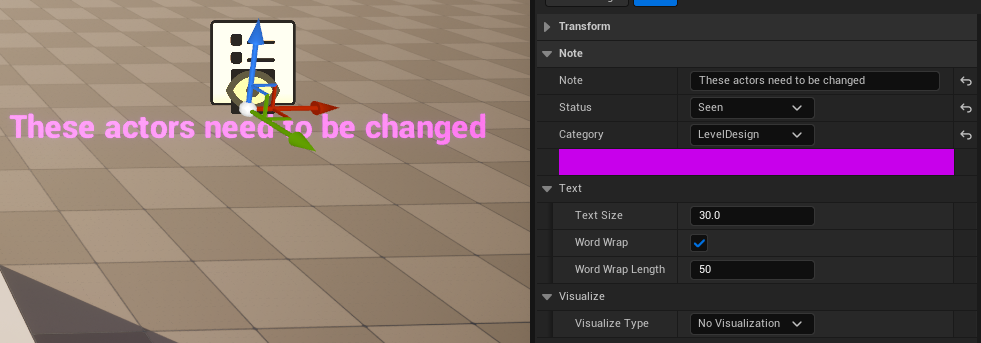
Status, and the colour of the text and colour band are based on its Category.Note#
The note is the main text area, where you can write a comment to leave as a reminder of what this note is for. As in the above example, the note says "These actors need to be changed", and that tells the person reading the note what this is about.
Info
A list of all different options for each variable below can be found in the Settings Reference page.
Status#
A status can be used to denote progress on the note. Has it been acknowledged? Has work started on it? Is something blocking work?
Category#
Not all notes relate to all people, or even all areas of work. You can use categories to colour code and narrow the focus of a note. This allows multiple notes within the same physical area to be visually distinct if they pertain to different disciplines.
Tip
Want to add your own custom statuses, categories, and colours? Head over to the customization section to figure out how!
Text options#
Here you can control various settings about the text you put as the note, such as word wrap, and text size.
Info
Default text size is 30. Word wrap is enabled by default.
Visualizations#
A Note Actor by itself provides no additional context as to why a note might be present. There are some visualization helpers to aid with context.
Visualization type#
To better contextualize the note written in the Note Actor, some handy visualization options are provided.
1. No Visualization#
Pretty self explanatory. The note is present as-is. This is the default.
2. Point to actors#
If you need the note to point to specific actors, you can use the Point to actors visualization. Add all the actors you want the note to point to in the list.
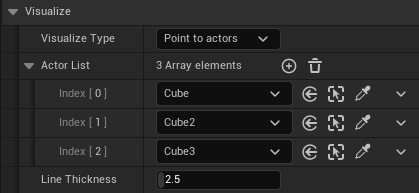
It spawns arrows in the colour code of the note pointing towards the actors in the list.
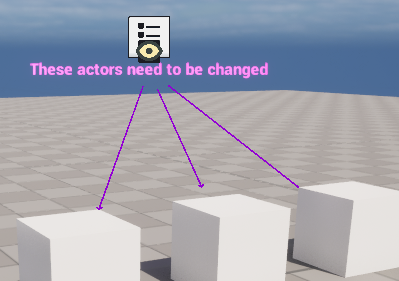
The Line Thickness variable controls how thick the arrows should be.
3. Draw Sphere/Box/Cylinder#
If instead of pointing to specific actors, you want your note to signify an area in the level, you can visualize that using one of the Draw Shape modes. You can edit the size of these shapes.
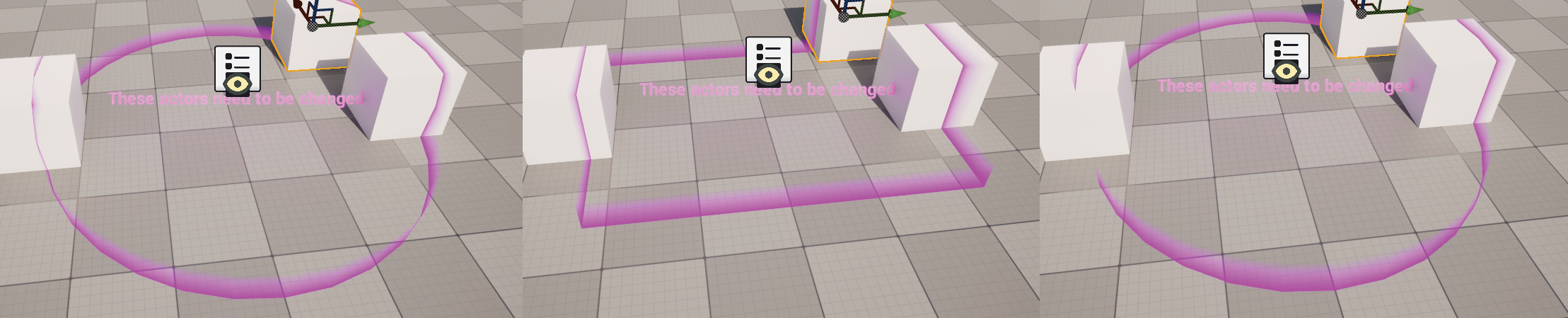
The Thickness variable can control how 'big' the render outline for these shape visualizations should be.
Info
The icon of the actor is based on its Status, and the colour of the text, visualizations and colour band in the details panel are based on its Category.
Adding a Granular Note Actor to a level#
There are multiple ways of adding a note actor to any level of your choice.
Using the Place Actors toolbar#
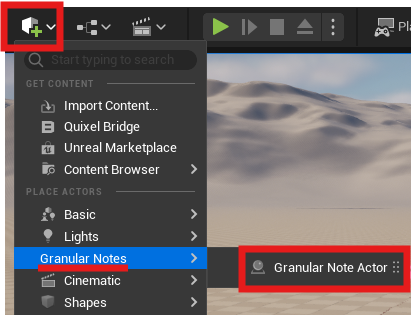
Notes can be added to the level from the Place Actors panel in the new Granular Notes category.
Using the context menu#
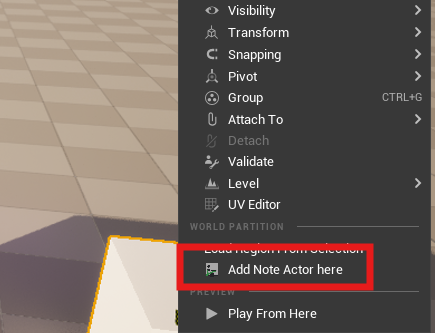
Add a Note Actor to the level directly by right clicking anywhere in the level viewport, and then clicking on Add note actor here. A note actor will be added at the location.
Info
If nothing is selected, or is too far away, the note actor will be added at the location of the viewport camera instead.
Multiple selection#
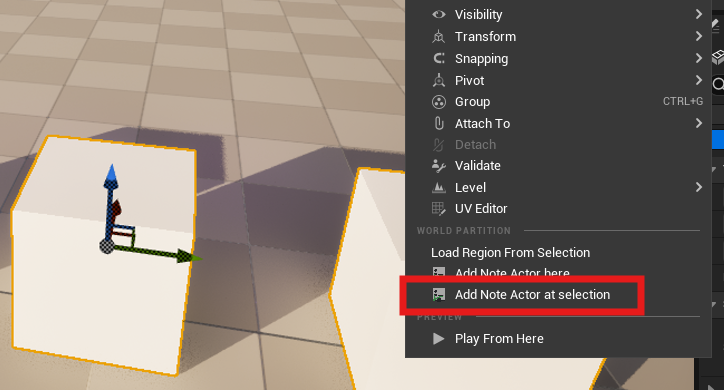
If you want to add a Note Actor related to multple actors in your level, you can right click after selecting more than one actor, and then click Add note actor at selection. The note actor will already be set up to point at the selected actors.
Example#
Example
Lets assume you need to add ambient sounds to an area of your level.
You start by adding a note to an area of your level which says "Add ambience". You assign it a status of Seen, and a category of Audio. Then you choose the visualization type of Sphere, creating an outline around the area that the note is referring to.
Next time when you see the note, you already know that you need to work on some audio in this part of the level. Then you could mark the note from Seen to Progress.