Customizing Granular Notes
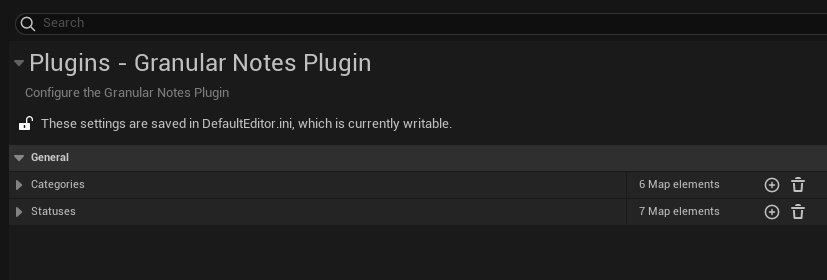
Granular Notes provides a lot of customization options for its Note Actors. Head over to
Edit > Project Settings > Granular Notes Plugin
for a full list of customization options.
Info
When the plugin is opened in a project for the first time, a default list of statuses and categories is automatically generated.
Customizing data#
All the data is customizable with the normal way to edit an array/list in the unreal editor
Categories#
Categories are represented by a string label and a color. This allows users to have custom color coded categories, and to differentiate them at a glance. The corresponding color for a category is chosen for each Note Actor and is displayed in its visualizations and text color.
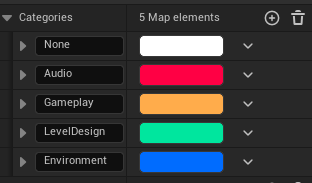
Adding/editing a category#
To add a category, click the + icon next to the Categories array. Then you can give your new category a name, and choose a color for it.
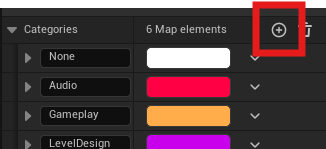
Editing categories works in the same way as normal arrays in the editor, just change the color/label of the category, and restart the editor.
Statuses#
Statuses are represented by a string label and an icon. This icon will be used on the actor in the level to represent its status. Eg. "Seen" or "Blocked" etc.
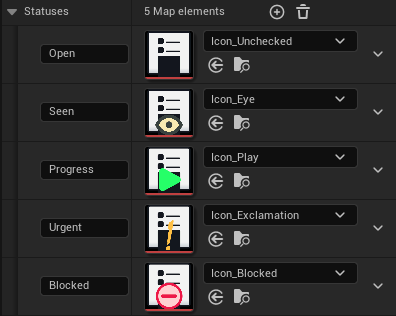
Adding/editing a status#
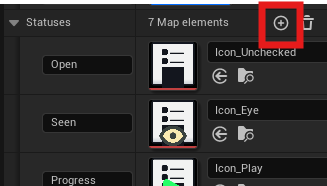
To add a status, click the + icon next to the Statuses array. Then you can give your new status a name, and assign a texture to it (texture needs to be a part of your project as a UAsset.)
Custom Icons
If you want to create new icons in the same style as existing ones, a blank svg template is available in the plugin's Resources/Assets/Icon_Template.svg
Deleting statuses and categories#
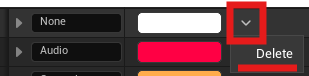
To delete either a status or a category, just click the down arrow button next to the entry you want to get rid of, then click Delete.
Whitespaces
Searching/filtering in the Notes List does not play too well with normally spaced phrases. While you can do it, it is encouraged instead to use either _(underscore) or write your status/category in UpperCamelCase instead of using spaces. For example, use TechArt or Tech_Art instead of Tech Art.
Further editing outside of Unreal Engine#
If you have changed the defaults, , changes to these settings are stored at the project level, in the Config/DefaultEditor.ini file. That can be edited within any text editor of your choice.
Editor Refresh
Any changes to statuses or categories, either in the plugin settings section or externally via text editor, would require an editor restart to reflect those changes.