Search & Filtering
The Notes List#
It's no good to just be able to add notes to levels. Levels can get huge, and it is easy to lose track of notes visually. Additionally, all notes may not even be relevant to everyone accessing the level.
Granular Notes adds an easy to use window that shows all the Note Actors present in the current level, presented as a fully filterable and searchable list.
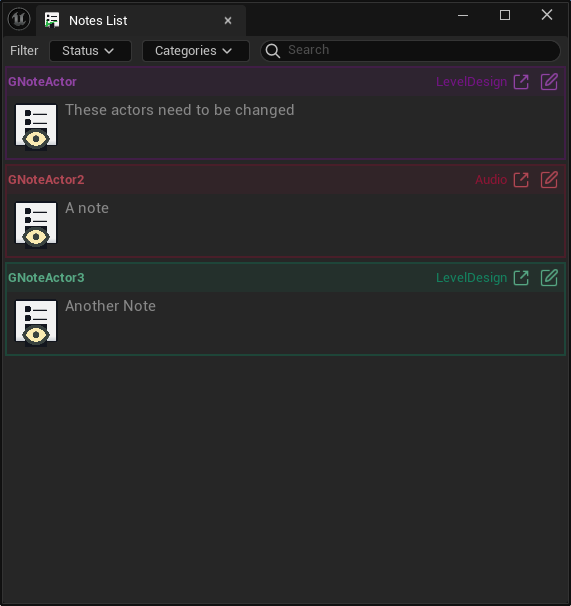
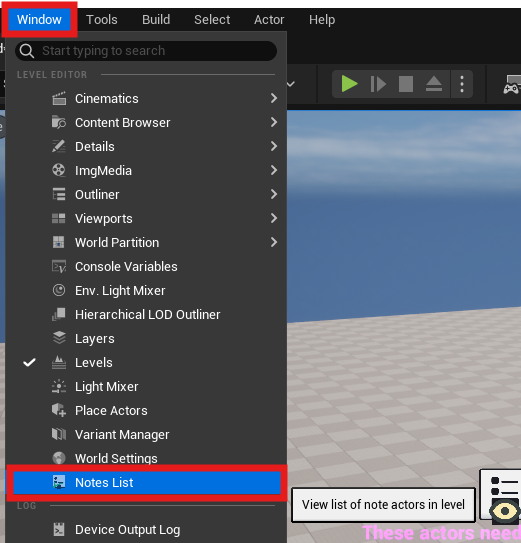
The Notes List can be found in:
Window > Notes List
from the main editor window.
Note
The location of the Notes List entry in the menu can vary from engine version to engine version, but it will always be in the Window toolbar.
Using the list#
The notes list will show all Granular Note Actors in the current level. This list can be filtered and searched to narrow down the list.
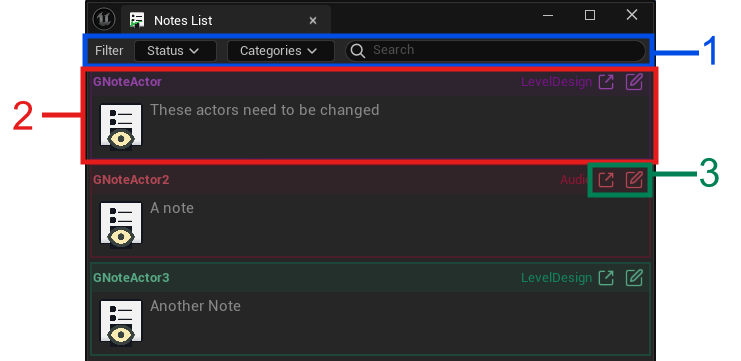
| Number | Description |
|---|---|
1 |
Filter and search bar to look through list of notes |
2 |
Single note panel with all note related information like Actor Name, Note, Status Icon, Category Colour and Name |
3 |
Action buttons to 1. Focus on note in viewport, and 2. edit note within the list interface |
Info
The notes are colour coded based on Category.
Search and filter#
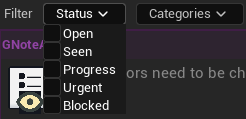
All the notes have a Status and a Category assigned to them. They can be filtered using the two dropdowns. After a filter is active, only the relevant notes will be shown in the list.
Additionally, the search bar can be used for searching for a specific keyword. The search bar recognizes actor name, note content, and even status and category names. The search bar can be used for more than just simple search. It understands boolean operations.
Tip
If you want to search for every note which has the word note or the word changed, you can use the ||(OR) boolean operator, and write your search like this: note||changed.
Finding a note in the level#
If you want to go to and select a particular note in the level, simply click on the link (go to) button to select and focus on the note actor.

Editing notes from the Notes List#
Notes can also be edited right from the list interface for convenience. To toggle editing, click the Edit button on the top right of every note.
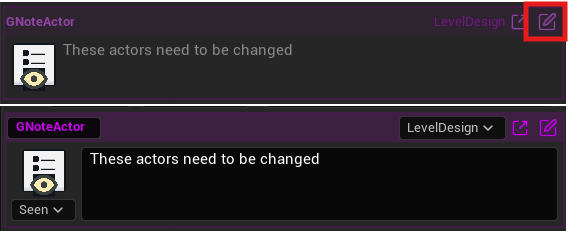
Bottom: Editing enabled. Note the dropdown for status and category.
Almost everything about a note can be edited from the list. Only exceptions are:
- It's location in the level
- The type of visualization used
Every change is reflected in the level as well.